Fitts’s Law
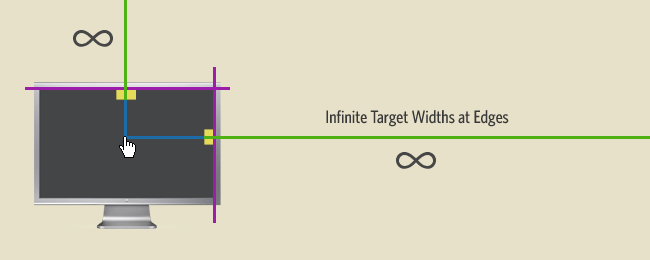
Fitts’s law says, the time which is necessary to reach the
goal depends on the size of the goal and the way which leads to the goal. If an
object is bigger, it seems closer and makes it easier to use. For example it is
a good idea to increase the size of those buttons what we are using more often
than others. This can make an interface more effective. Example: On the bottom
of a form, there are a “Send” and a “Delete” buttons. In the order of
effectiveness we have to increase the size of the “Send” button.
Fitts's law is a model in HCI which is used to describe human movements. Fitts's law also used in ergonomics and it is very important in designing interfaces. When we apply Fitts's law, we deal with the distance between objects and the sizes of the objects. Wen we design an interface we try to keep even distances, try to keep symmetry, and apply proper sizes to create a user friendly interface. This is what Fitts's law means in practice.
Fitts's law is a model in HCI which is used to describe human movements. Fitts's law also used in ergonomics and it is very important in designing interfaces. When we apply Fitts's law, we deal with the distance between objects and the sizes of the objects. Wen we design an interface we try to keep even distances, try to keep symmetry, and apply proper sizes to create a user friendly interface. This is what Fitts's law means in practice.
Buxton’s 3 State Model
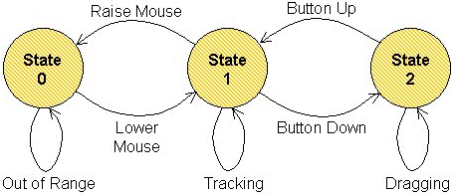
Buxtons's 3 state model is used to measure the speed and the acceleration of the mouse movements in use. The three stages are: out of range, tracking and dragging. In out of range state (OOR) there is no effect, because we lift the mouse up from the surface. In tracking state we measure the positioning and moving of the mouse's cursor, because the cursor on the screen follows the movement of the mouse. We step into State 2 (Dragging state) when we click with the mouse button and try to apply a drag-n-drop method or group select.
Buxton’s 3 state model is used to determine how easy it is to use a mouse or the wheel and will measure how much pressure a user puts on it and how much dexterity and speed is used during this action. The 3 states are the following:
Buxton’s 3 state model is used to determine how easy it is to use a mouse or the wheel and will measure how much pressure a user puts on it and how much dexterity and speed is used during this action. The 3 states are the following:
- Out of range: Used to show re-positioning and clutching of the mouse.
- Tracking: For moving an item around the screen such as cursor.
- Dragging: Checking the time it takes you to drag an object across the screen or to group an amount of items together.
Key-Action Model:
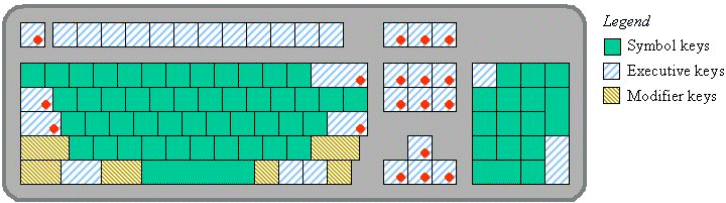
Key-Action Model describes the interaction between the the key presses and the functions. It defines what happens when we press a certain key combination on our keyboard. The keys can be grouped by 3 different classes: symbols, modifier keys and executive keys. Symbols are simple letters, numbers and symbols. We can use these while we are editing text. Modifier keys do not work as symbols, they do not have individual functions. They are working together with other keys. For example: Shift is a modifier key; if we press Shift and a letter, we will type a capital letter, because Shift modifies the lowercase letter to uppercase. Executive keys have special functions in system level. They have individual functions which are specified in applications and operating systems. For example: F1 will open Help; or Home key will scroll up a web page to the top.
Key-Action Model allows you to look at how users will interact with keyboards and therefore what kind of shortcuts they will use to carry out tasks.
Key-Action Model allows you to look at how users will interact with keyboards and therefore what kind of shortcuts they will use to carry out tasks.
This will show how what the user is expecting the computer
to do when you try to use certain shortcuts and what the computer will actually
do when you press the shortcut.
The buttons on a keyboard can be categorised into 3
sections:
- Symbol: These can deliver graphic symbols such as letters (qwerty), numbers (263237) or symbols (!"£$%^&*@) which can then be inputted into a text editor such as word or notepad
- Executive key: these are actions that are used and placed at the application or system-level. The keys that are used in executive situation would be the ENTER, F1 or ESC keys.
- Modifier key: these don’t actually type anything but they allow you to change what the next key-press will actually type for example the SHIFT key, if you press the shift key and then the number 5 for example it will put this %.
Perception:
Colours:
- Luminance: overall brightness of a computer screen
- Pop-out effect: distinction in colours
- Trichromacy: normal human vision, having perception of three main colours
Pattern:
- Proximity: distance between objects
- Continuity: a pattern being continued
- Symmetry: exact copy in a mirrored way
- Similarity: objects with similar properties

Perceptions used on this blog:
- the text size is used on this blog is sufficient and it stands out clearly
- the text is black on a white background and it is very clear even for visually impaired users
- all images are very clear on this blog and they all have the option to click on them and see them in a bigger size
- it is easy to navigate on the blog by scrolling up and down as we need to
- the font type used on this page (Arial) is simple and easy to read
- the colour scheme is slight, relaxing for the eyes
References:
WIKIPEDIA (2015) - Fitts's Law
[Online] Available from:
https://en.wikipedia.org/wiki/Fitts%27s_law
[Accessed: 12/10/2015]
DGP (2015) - A Three-State Model of Graphical Imput
[Online] Available from:
http://www.dgp.toronto.edu/OTP/papers/bill.buxton/3state.html
[Accessed: 12/10/2015]
Mads Soegaard (2015) - Gestalt principles of from perception
[Online] Available from:
https://www.interaction-design.org/literature/book/the-glossary-of-human-computer-interaction/gestalt-principles-of-form-perception
[Accessed: 13/10/2015]
